GridCraft
Roblox Creator Tools / Building System
GridCraft for
Roblox creators.
Add voxel-style block building to your Roblox experience.
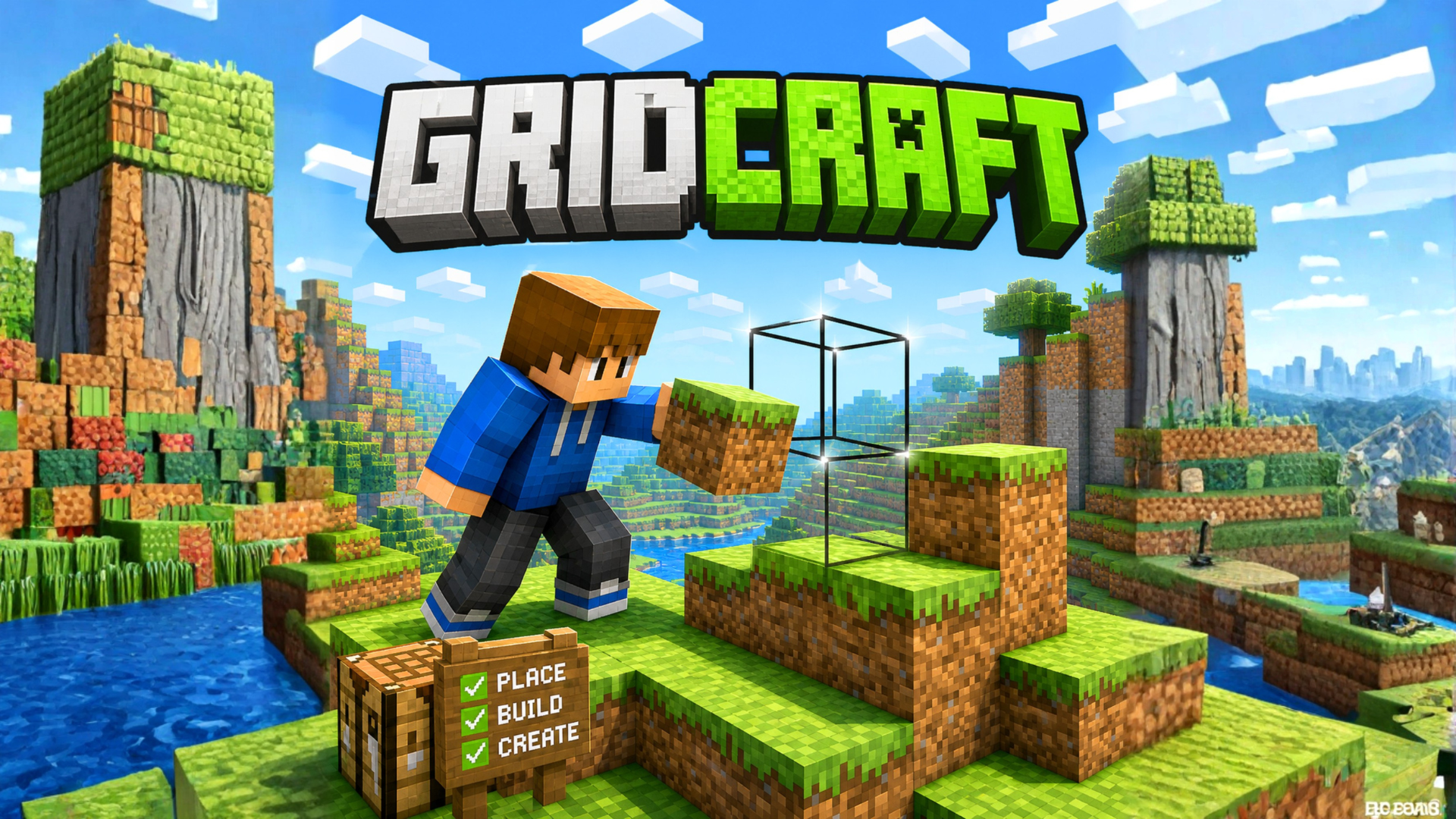
GridCraft lets players place and remove grid-based blocks
using a simple preview outline, with support for PC,
mobile, and gamepad controls.
01
What is GridCraft?
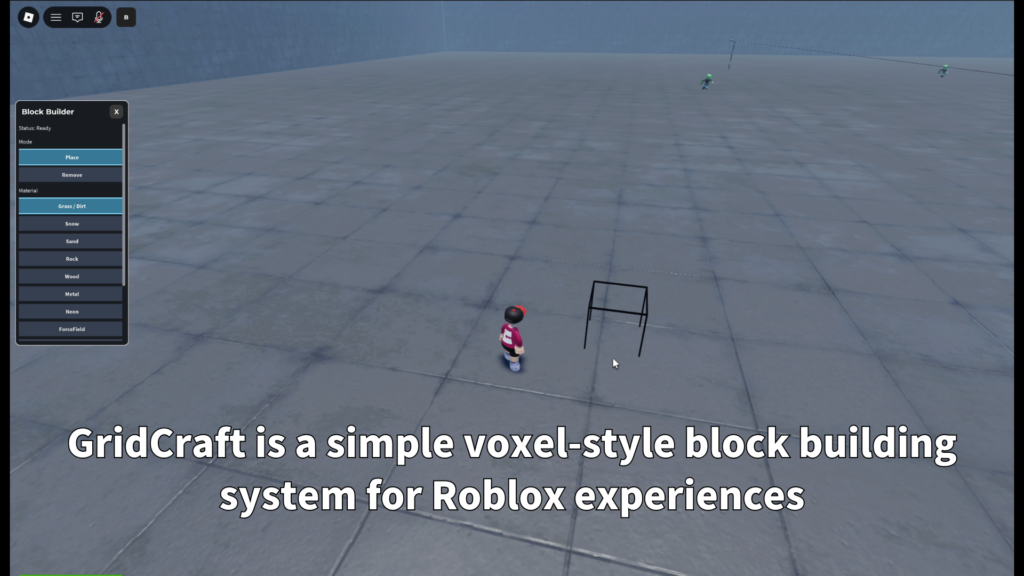
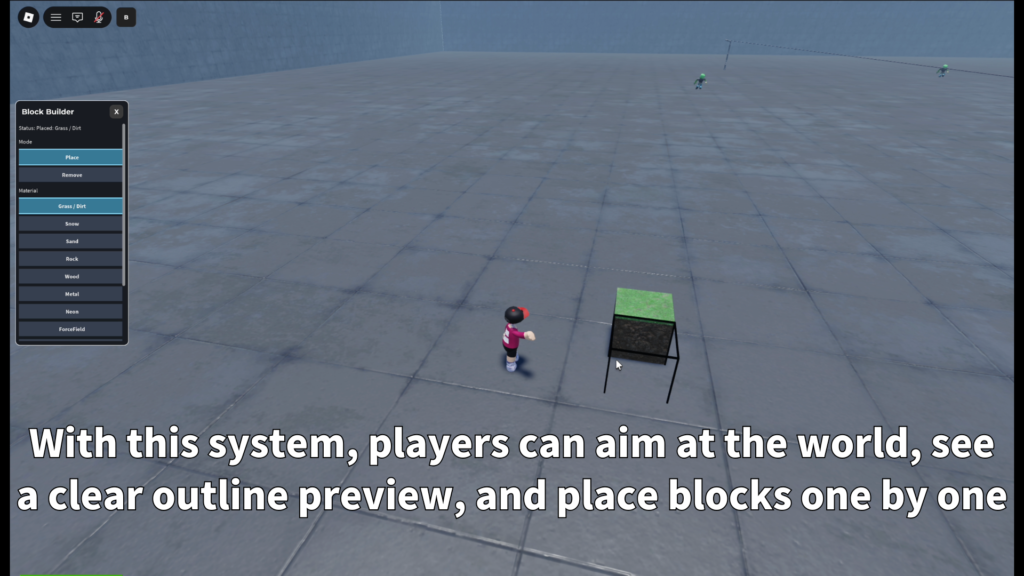
GridCraft is a voxel-style block building system for
Roblox. Players can aim at the world, preview the target
block position, and place or remove blocks inside your
experience.
It is designed for creators who want to add a building
feature without creating the full grid placement,
preview, material, and control system from zero.
02
Main Features
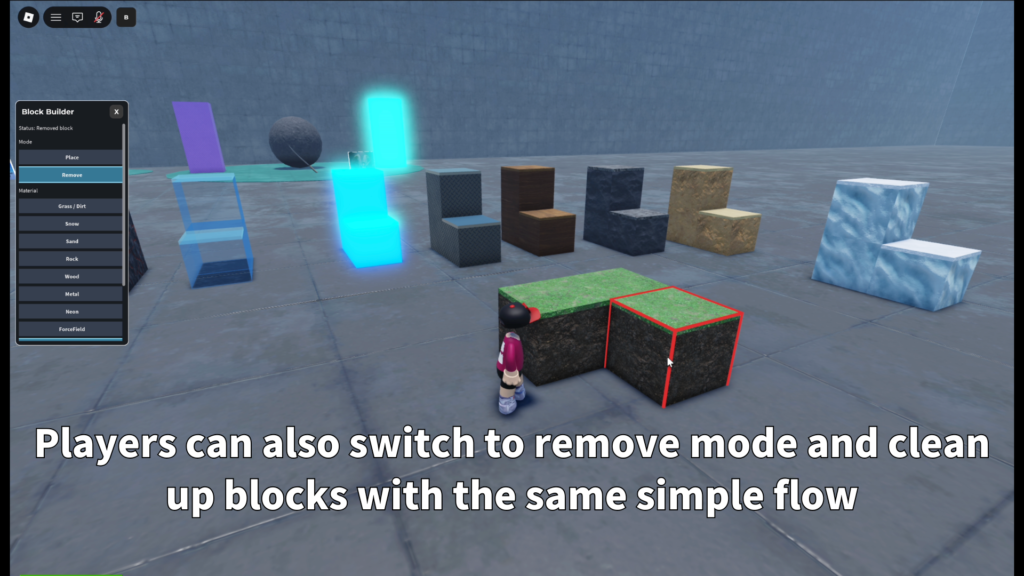
Place and remove blocks
Players can build with grid-based blocks and
use an outline preview to see where the next
block will be placed or removed.
Multiple material styles
Choose from natural, industrial, glowing,
and special material presets to create
different terrain and structure styles.
Cross-platform controls
GridCraft supports keyboard and mouse,
mobile touch controls, and gamepad input.
- Voxel-style block building
- Grid-based placement
- Preview outline before building
- Place and remove modes
- Material selection
- PC, mobile, and gamepad support
- Block limit settings
- Placement distance settings
Materials and Terrain Feel
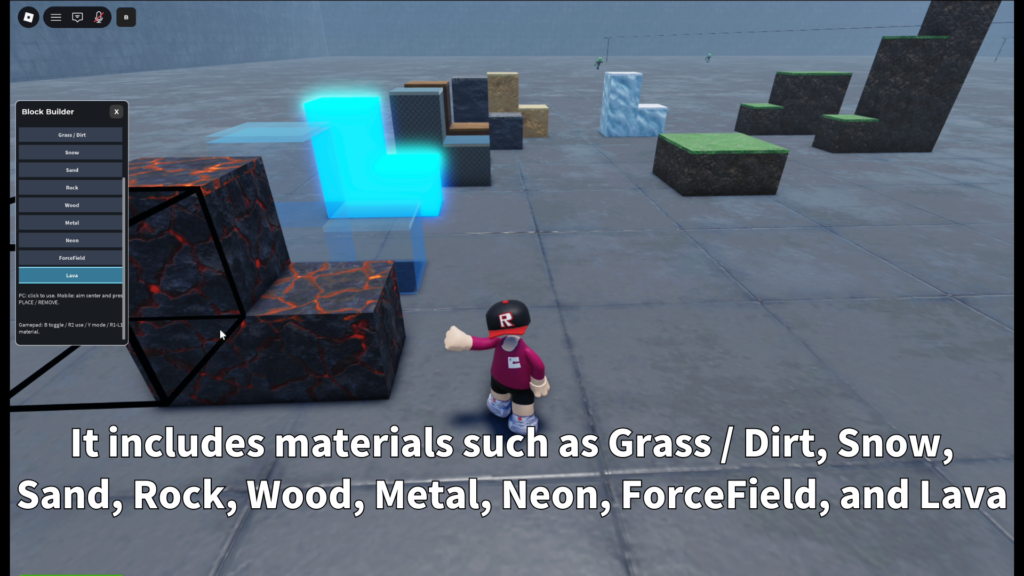
GridCraft includes several material presets so creators
can give players different building styles from the start.
Placed blocks keep the material selected at the time they
were placed.
- Grass / Dirt
- Snow
- Sand
- Rock
- Wood
- Metal
- Neon
- ForceField
- Lava
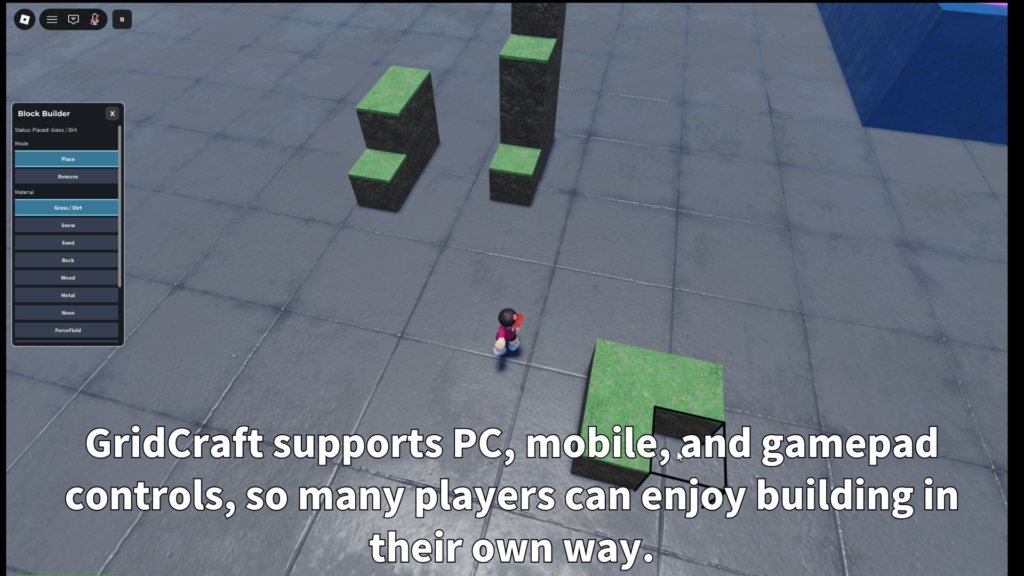
Grass / Dirt blocks are designed to feel more natural.
Only the highest visible Grass / Dirt block shows grass
on top, helping stacked terrain look cleaner.
03
Controls
DESKTOP
PC
Open or close GridCraft with the on-screen
B button. Use left click to place or remove
the selected block target.
Mode buttons switch between Place and Remove,
while the material buttons select the block
style.
TOUCH
Mobile
Mobile players can open GridCraft with the
B button and aim using the center dot.
Use PLACE or REMOVE for building actions,
switch modes from the interface, and choose
materials from the material panel.
CONTROLLER
Gamepad
Use B to enable or disable GridCraft,
R2 to place or remove, and Y to switch modes.
RB and LB cycle through materials. The center
of the screen is used as the aim point.
04
Customizable Settings
GridCraft includes settings that help creators adjust
how the building system behaves. You can tune the block
size, placement distance, build limits, cooldown,
height range, sound, animation, and block cleanup
behavior.
- GridSize
- MaxBlocksPerPlayer
- MaxPlaceDistance
- PlaceCooldown
- MinGridY / MaxGridY
- BlocksOnPlayerLeave
- CanRemoveOtherPlayersBlocks
- Place and remove sounds
05
Best Use Cases
GridCraft is a good fit for Roblox experiences where
players build, edit, experiment, or shape part of
the world.
- Sandbox building games
- Voxel-style worlds
- Creative lobbies
- Survival or crafting maps
- Team building areas
- Practice building zones
- Mini-game arenas
- Player-created structure systems
06
Gallery & Demo
See GridCraft in action across different building
situations, material options, terrain styles,
and in-game controls.
GAMEPLAY VIDEO
Watch GridCraft
in action.
See the block placement, removal mode,
targeting preview, material selection,
and general building flow in this demonstration.
GRIDCRAFT
Add block building to
your Roblox world.
Use GridCraft to add flexible voxel building to sandbox,
survival, crafting, creative, and player-generated
Roblox experiences.